
 iLA VAD · Windows
A clear path for your audio.
Connect your microphone, speakers and music to idolLiveAudio, then bring the processed mix into your streaming application.
BETAAvailable through iLA Nexus. Sign in and install iLA VAD from My Products.
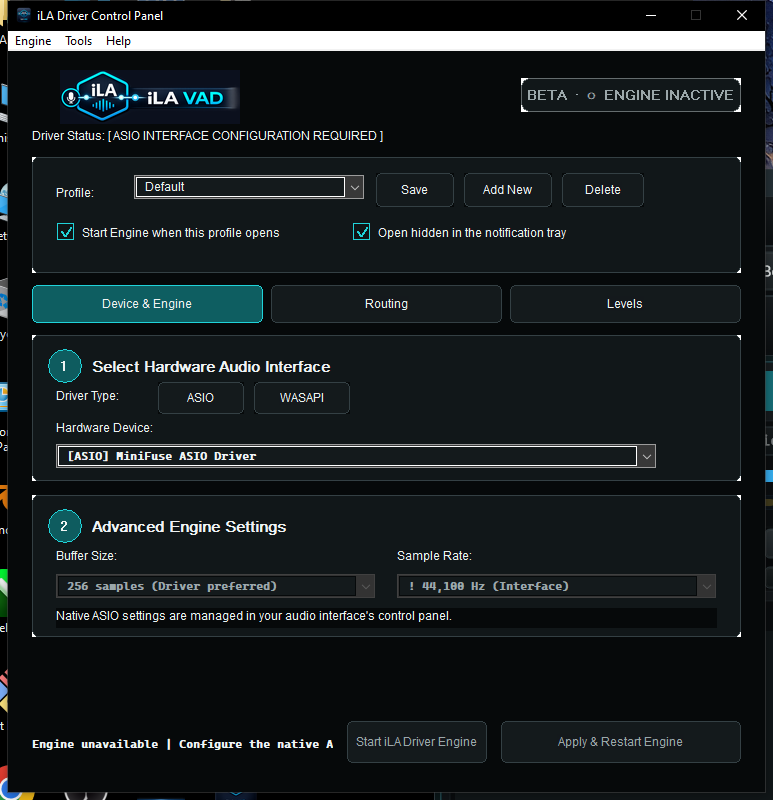
Start with your device
One place to set the connection.
Choose the audio interface you use, then assign the inputs and outputs for your session. Native ASIO devices use the manufacturer's driver; the WASAPI option provides a path for supported Windows audio devices.
The buffer and sample rate work with your device's capabilities. Use the setup guide to find the settings that fit your computer and audio interface.
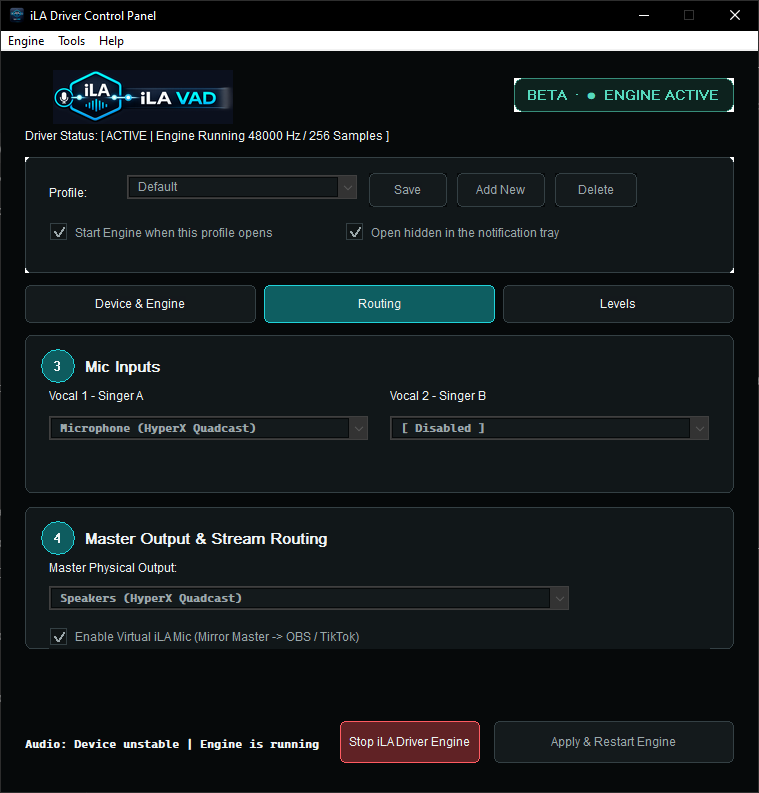
From the mix to your audience
Choose where the sound goes.
- Set the microphone inputs
Select the input channels that carry your voice into idolLiveAudio.
- Choose the monitor output
Send the mix to the speakers or headphones connected to your audio device.
- Connect the stream
Choose Virtual iLA Mic as the input in a compatible streaming application such as OBS or TikTok LIVE Studio.
idolLiveAudio
The workspace on the other side of the connection.
Shape the voice, balance the music and manage effects in the application built around your live session.